

The listing agreement is in your email. The prospect list is a spreadsheet. The tour you did Tuesday is a note on your phone.
Then the client calls to ask how it's going, and you spend twenty minutes assembling an answer you should have had ready.
The Projects page is the fix, and it's the part of Realcore most agents use at about half strength. They enter the listing, and that's where it stops. Everything underneath it — the prospects, the tenants, the notes, the files, the dates — is sitting there waiting to be used.
Here's what it actually does for a landlord listing.
Start with My Data > Projects
Click My Data, then Projects. Every listing you're on shows up in one list. Use the dropdowns to filter by type, and the column headers to sort by Project ID, Updated Date, Type, or Project Name.
If a listing isn't in there yet, add it with the icon in the top right corner. A few things to get right while you're in there:
- Client. If your landlord holds each building in its own LLC, enter the parent company here. That's what lets you see everything that client owns together instead of as five unrelated listings.
- Name. Name it something you'll recognize at a glance. Most agents use the property name.
- Type and dates. Lease, sublease, sale. Then the start and end date of your listing agreement — the end date matters more than you think, and we'll come back to it.
- Property and agents. Attach the property, or several if the listing covers more than one building, and add anyone working it with you.
That's the setup. Thirty seconds of work, and the listing finally has an address.
The Project Portal Is Where the Work Lives
Under each project name on the Projects page there's a link that says Visit Project Portal. Click it. This is the screen most agents have never opened, and it's the whole point of entering the listing in the first place.
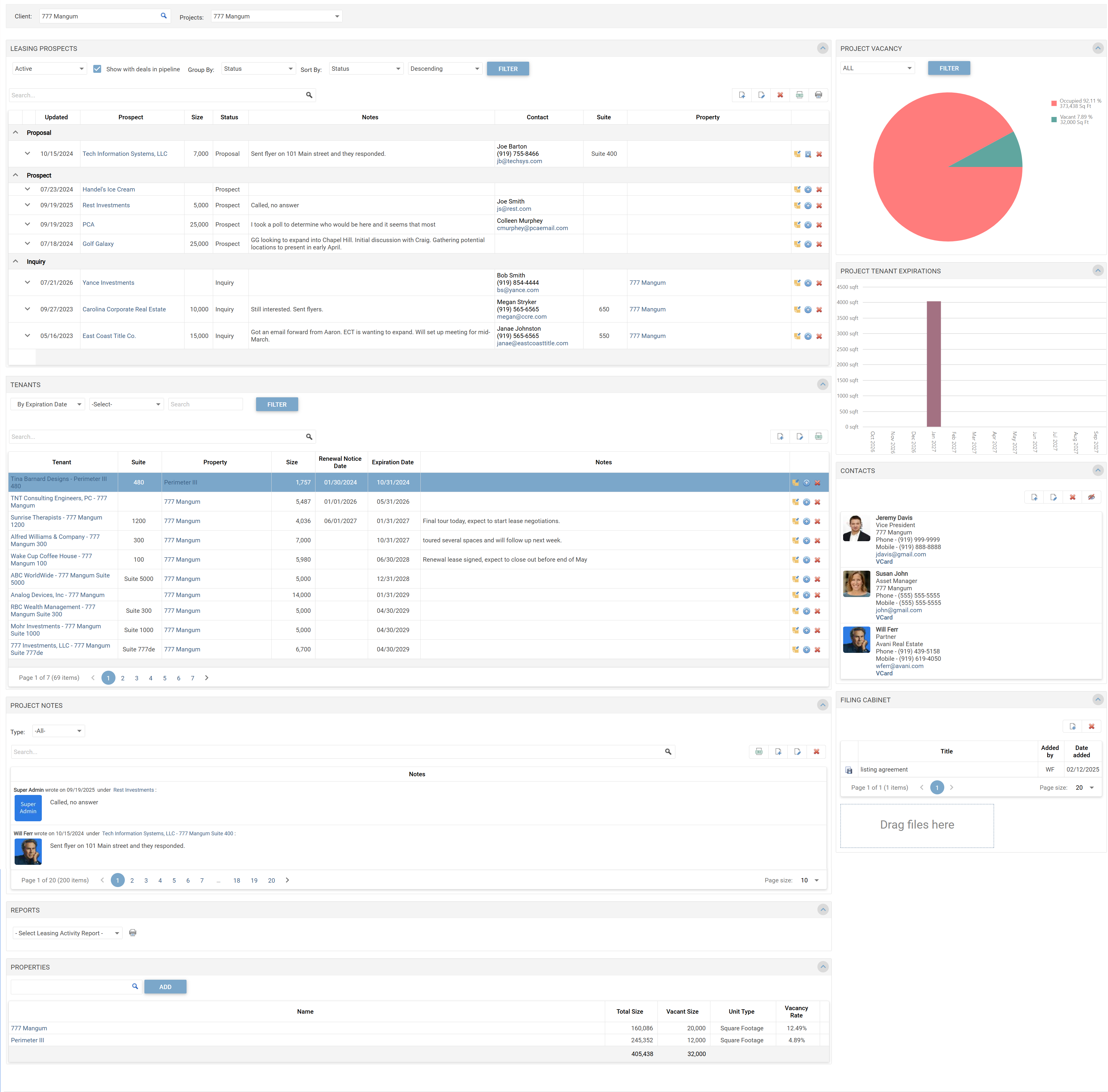
Everything about that one listing is on this page: leasing prospects, current tenants, notes, reports, properties, contacts, project vacancy and tenant expirations. Use the dropdowns at the top to switch between clients and projects without going back.
Leasing Prospects
This is the section worth your Tuesday afternoon. Every company that has toured the space, asked about it, or been sent the flyer goes in here — with the size they want and the broker on the other side.
The icons on the right let you add a prospect, edit one, delete one, export the whole list to Excel, or print the Leasing Report. Check Show with deals in pipeline to pull in the ones that already have a projected deal running, so you're looking at the real picture and not just the cold names.
Add a note to any prospect as you go. Six weeks from now, when your client asks what happened to the group from the law firm, you won't be reconstructing it from memory — you'll be reading it.
Tenants
Anyone currently leasing in a property attached to the project shows up here. Closed transactions land automatically. You can also add existing tenants by hand, which is exactly what you want to do the week you pick up a new listing and have a rent roll in front of you.
Sort by expiration or renewal date, filter by property, and you're looking at a renewal pipeline you already own. Every one of those dates is a deal you don't have to go find.
Notes, Reports and Files
Project Notes collects every note added anywhere in the project into one place, split between transaction and accounting notes, and exports to Excel. The Reports section generates the Leasing Activity Report — pick it from the dropdown and print it. That's your client update, built from work you already did.
And use the Filing Cabinet. The client agreement sheet, the listing agreement, the renewal agreement, the input form for the listing site: put them on the project where anyone covering for you can find them.
Push It to the Pipeline Without Retyping Anything
Here's the part that saves real time. On the Projects page, each row has an icon that pushes that listing straight to your Pipeline as a deal. The client, the property, and every file and note attached to the project come across with it.
The same thing works inside the portal. Anywhere you see that icon — on a leasing prospect, on a current tenant who's coming up for renewal — you can create the deal right there. You go from a name on a leasing report to a deal in your pipeline in one click.
The Date That Costs People Listings
Listing agreements expire, and they expire quietly. Keep your end dates current: go to My Data > Projects, find the listing, open it, click Edit in the middle box, update the end date, and save.
Then put the signed renewal in the filing cabinet while you're thinking about it.
What's Coming in Angelo
Everything above works today. In Angelo, the Projects page stops being a list you read and starts being a dashboard that tells you what needs attention.
A row of tiles across the top gives you total listings, active listings, how many are under contract, what's expiring in the next 30 days, what's expiring in 31 to 90 days, and your total available square footage. Expiration dates in the table are color-coded — red when an agreement has already run out, yellow when it's inside 90 days — so the thing you need to deal with is the thing your eye lands on.
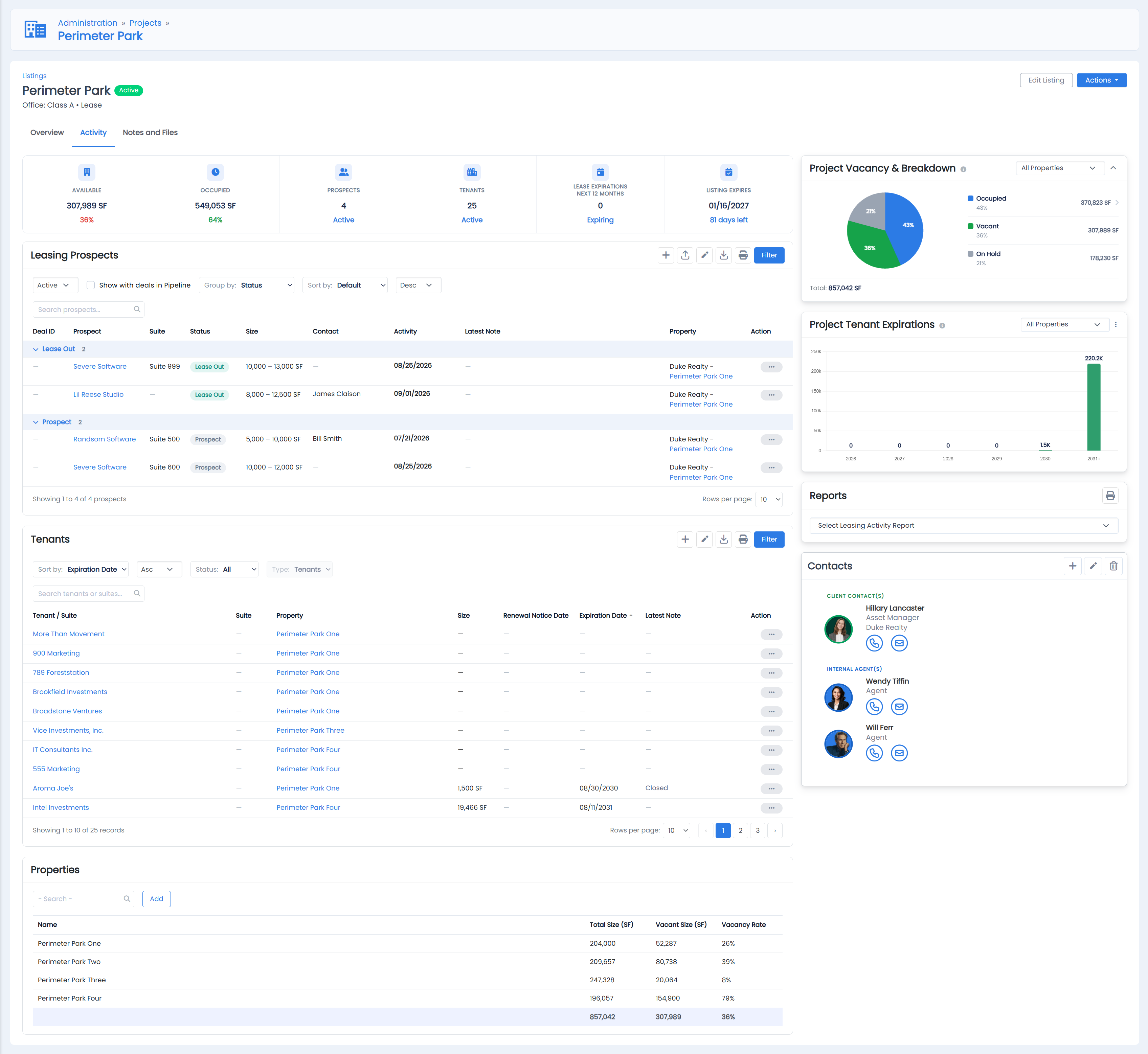
Open a single listing and there's an Activity tab waiting. Available versus occupied square footage, with the percentage of the building underneath each. How many prospects you're working and how many tenants are in place. How many leases run out in the next twelve months. A countdown of days left on your own listing agreement. A vacancy breakdown and a tenant expiration chart you can click into year by year and month by month.
Underneath that, every building on the listing opens up to show its suites, and each suite links to a deal — or starts one. Push a prospect to the Pipeline and Angelo fills in the whole deal: your client as the landlord, the building as the property, the prospect as the tenant.
Same page, same place in the menu. A great deal more in it — and the habits you build on it now carry straight over.
We're here to help! If you want a walkthrough on your own listings, email us at support@realcoreapps.com or visit our Support Page for tutorials and more. And don't forget — this month's live trainings are happening soon. No RSVP needed, just join. You'll find dates, times, and links on our Monthly Training page.