

Closing a deal in Realcore is not the finish line — it is the starting point for the approval process. Before a deal moves through billing and into payment, it passes through a defined notification and approval workflow that keeps agents, admins, and management aligned every step of the way.
If you have ever wondered exactly what happens after a deal closes — who gets notified, what they can do, and where you can track it all — this post walks through the full lifecycle from start to finish.
Step 1: The Deal Closes and Notifications Go Out
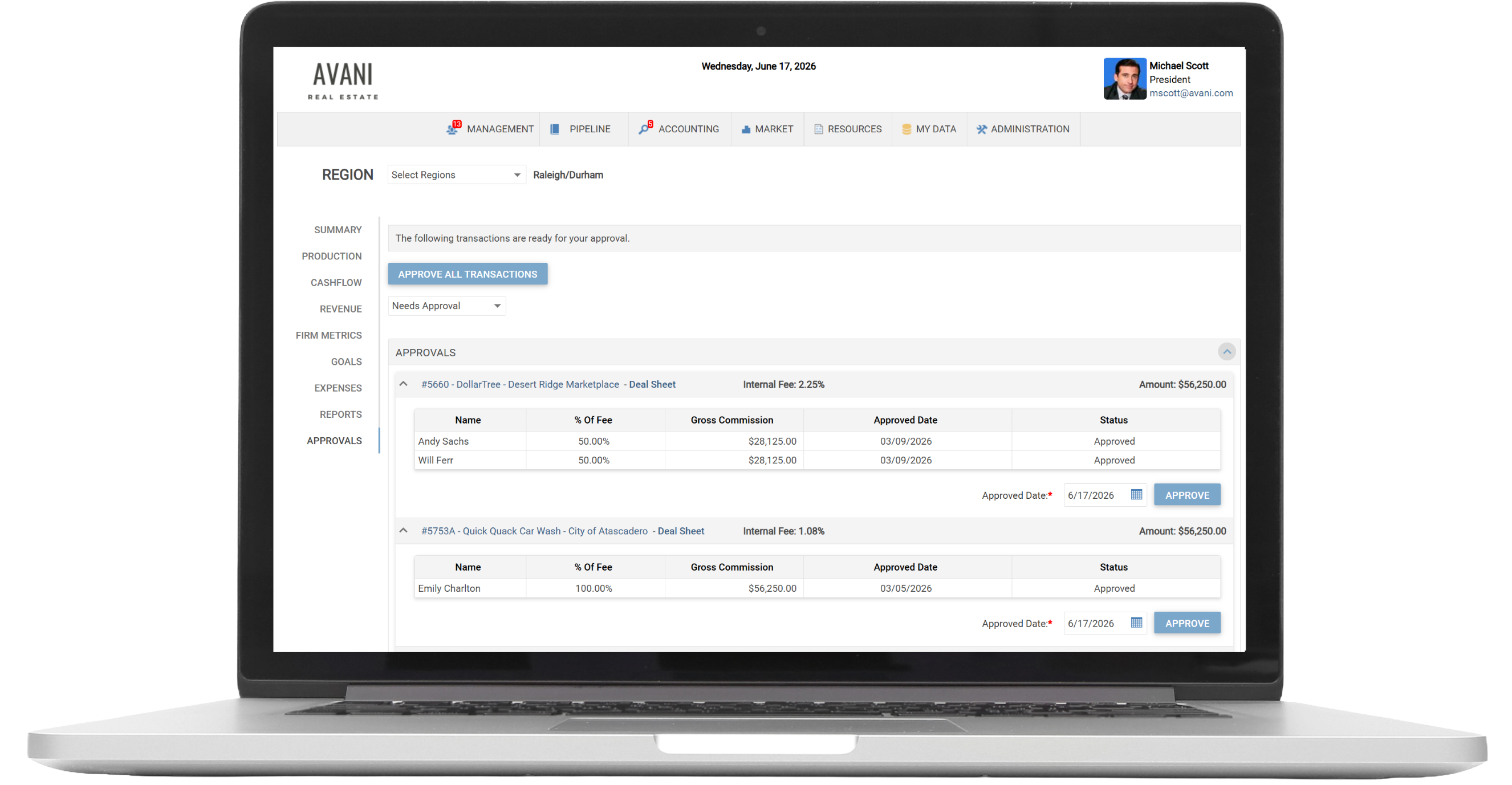
The moment a deal is closed, Realcore triggers agent notifications. Who receives that notification depends on a setting in your Administration > Application Settings. You can configure the system to notify all agents on the deal, or only the lead agent. That choice is yours to make based on how your firm operates.
Once notified, each agent who receives the notification has three options:
- Approve — the agent reviews the deal and confirms everything looks correct.
- Dispute a Split — the agent believes their commission split is incorrect and flags it.
- Ask for a Correction — the agent identifies something on the deal that needs to be updated.
If an agent disputes the split or asks for a correction, a notification is sent to an administrator so the deal can be reviewed and updated before the process moves forward.
Step 2: Agent Approvals Are In — Now It Goes to Management
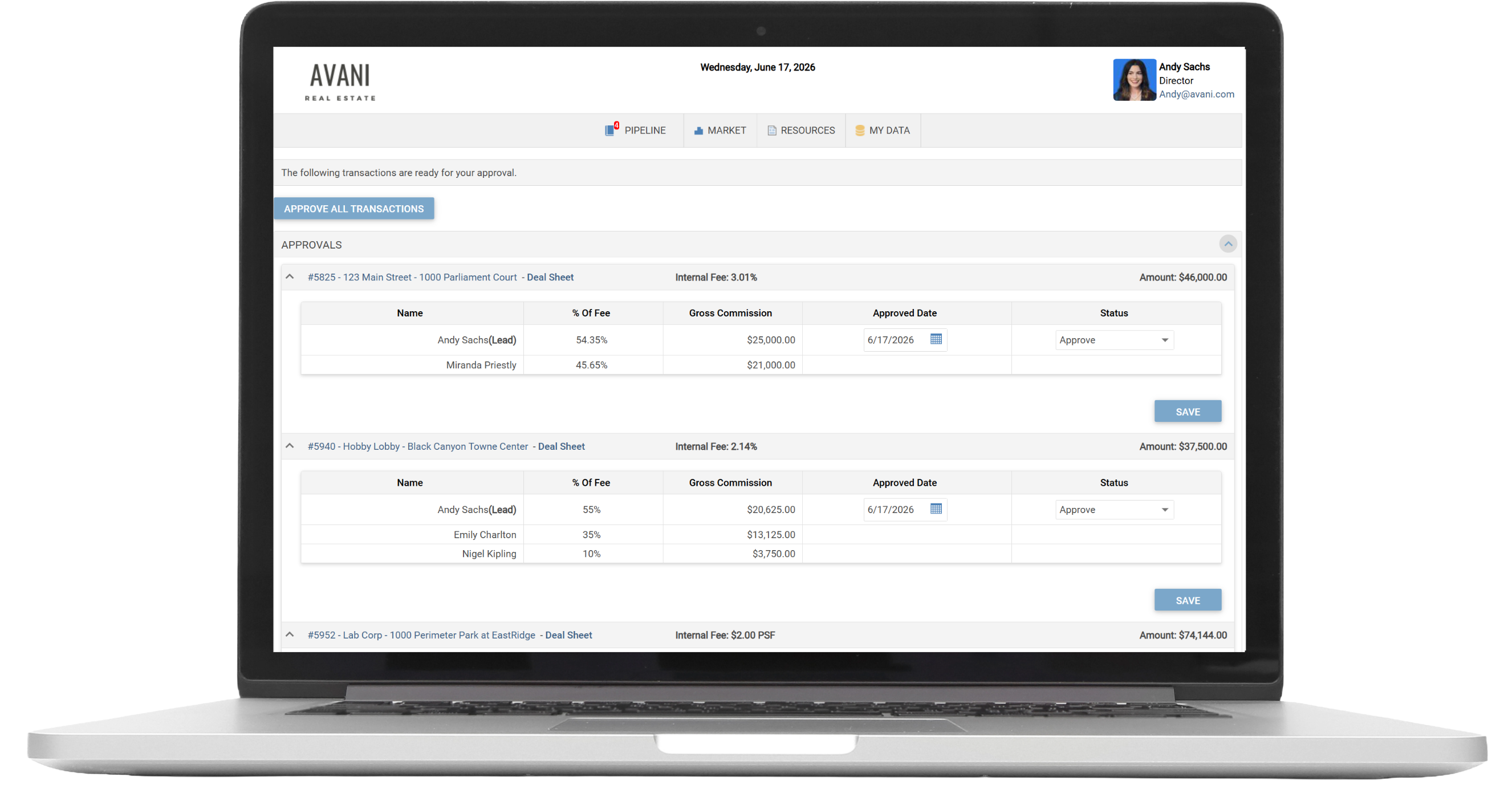
Once all agents on the deal have approved, the deal moves to the next stage: management approval.
The Management Approvals feature is tied to individual users. If you have this feature turned on in a user's profile, that person will have access to the Management Approvals area to review and approve deals on behalf of the firm.
To find deals ready for your review, head to Management Approvals and check the dropdown. Here is what each option shows you:
- Needs Approval — this is the default view. It displays all deals where agents have fully approved and the deal is now waiting on management sign-off. If you are looking for your action items, start here.
- Pending — this view shows all closed deals regardless of where they are in the agent approval process. Deals will sit here while agents are still working through their notifications. This is useful if you want a full picture of everything in flight.
- Dispute a Split — filters to deals where an agent has flagged a commission split concern.
- Needs Correction — filters to deals where an agent has requested a change.
One important note on the Pending view: you can approve a deal from Pending even if agents have not finished approving yet. This does not remove the deal from the agents' side — they will still see it and can still submit their approval. You are simply moving forward on the management side independently.
Step 3: Tracking Approval Status in Accounting
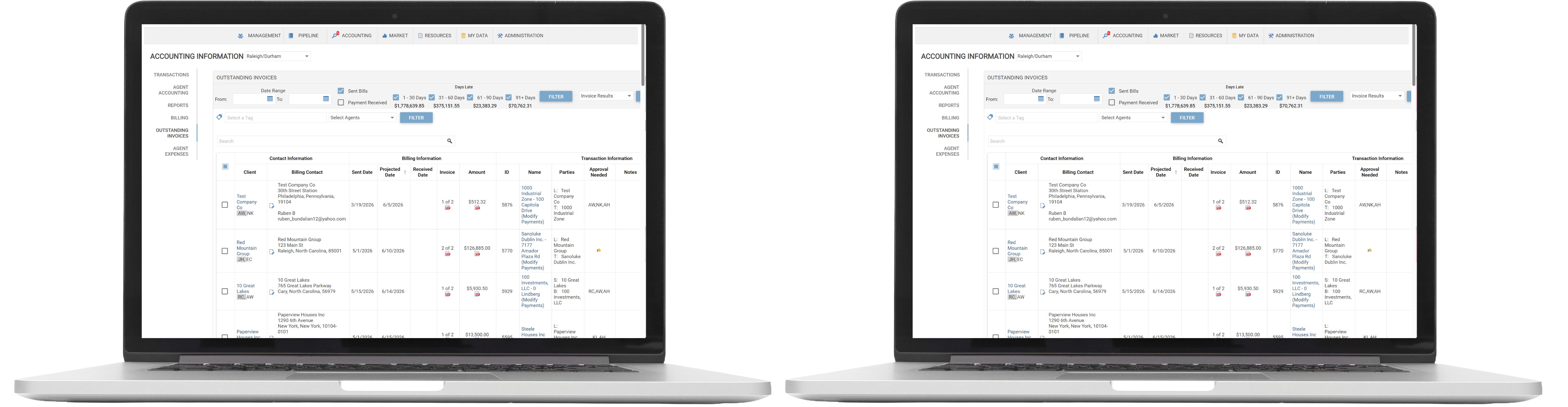
You do not have to stay in Management Approvals to keep tabs on where deals stand. Approval status is visible in two places inside Accounting: the Billing page and the Outstanding Payments area.
Both pages include an Approvals column. Here is how to read it:
- Agent initials — if you see initials in the approvals column, those are the agents who still have a pending approval on that deal. The deal is not fully approved yet.
- Thumbs up — once every agent and the managing broker has approved, the approvals column displays a thumbs up. That deal has cleared the full approval process.
One thing worth knowing: if the managing broker approves before all agents have completed their approvals, the column will still display the remaining agents' initials. The thumbs up only appears once everyone is done.
You Are Always in Control of Timing
Approval status is informational — it does not block your ability to invoice or process payment. You can choose to move forward with billing and accept payment on a deal at any point, even if the approval process is not fully complete. Or you can hold off until the thumbs up appears. That decision is entirely up to you and your firm's workflow.
The approval process is there to give your team a structured way to flag issues, verify accuracy, and confirm alignment before money moves — but it does not have to be a gate if your workflow does not require it.
If you have questions about configuring your notification settings or the Management Approvals feature, reach out to our support team and we will walk you through it.